
AREA Custom: custom object recognition in video
Describe what you are looking for.
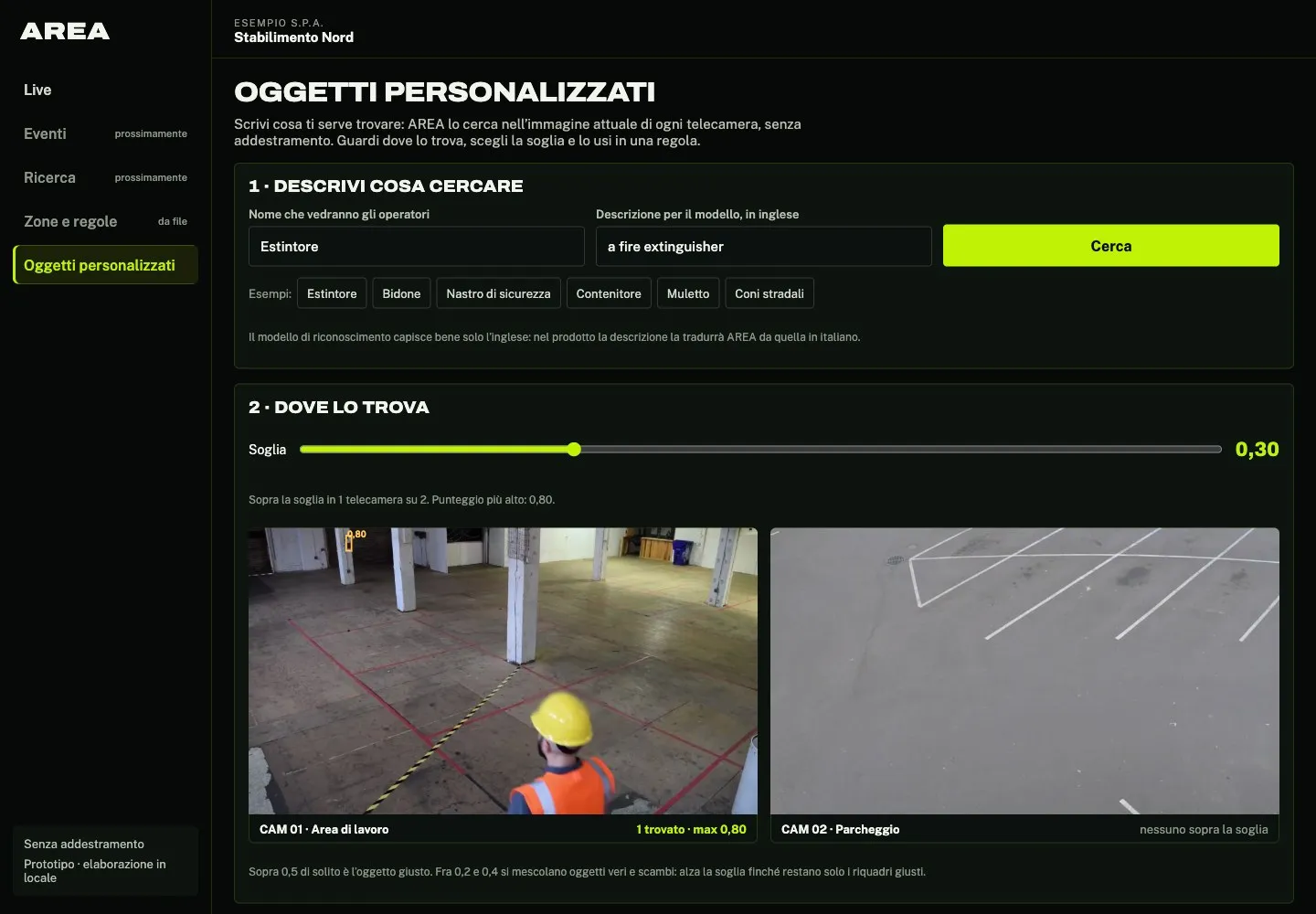
Write in words the object you need to find: AREA looks for it in your cameras, live or in recorded video, with no training. You see where it finds it, choose the threshold and use it in a rule.
In short
AREA Custom is the AREA feature that recognises objects specific to your company, even beyond the 80 standard types, from a description in words. No images to label and no training: AREA looks for the object in your cameras, you choose the threshold and use it in rules, to know when it is there or when it is missing.
When do you need to recognise specific objects?
When what you need is not a person, a vehicle or one of the other 80 standard types: a fire extinguisher, the cones of a road works site, a container left in an aisle.
AREA uses an open-vocabulary model: it understands a description and finds the objects that match it, each with a score. Distinctive objects usually score above 0.5; generic, small or partly hidden ones stay lower, and there the threshold needs choosing with care.
For objects that stay uncertain there is a further step, a model trained on images from your cameras: we assess it together case by case.
How do you use AREA Custom?
Four steps, with no images to label. Then the object is used like the rest of AREA: here’s how detection works.
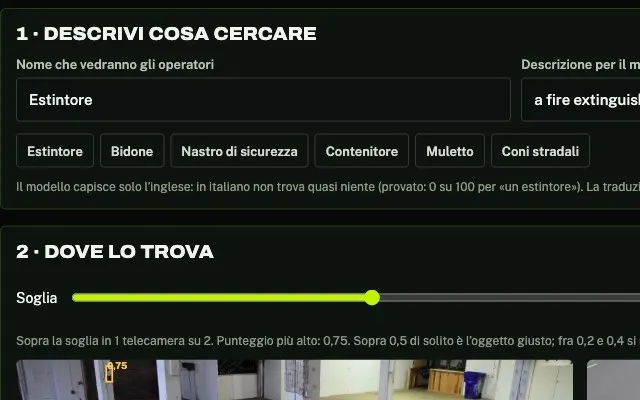
Describe the object
Write the name operators will see and a short description of what to look for.
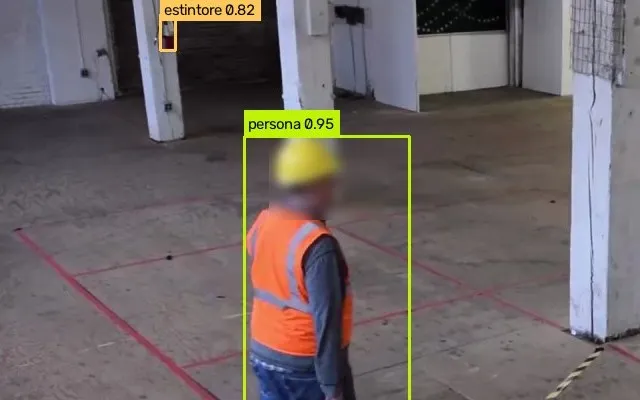
See where it finds it
AREA looks for it straight away in the image from every camera and draws the boxes with their score.
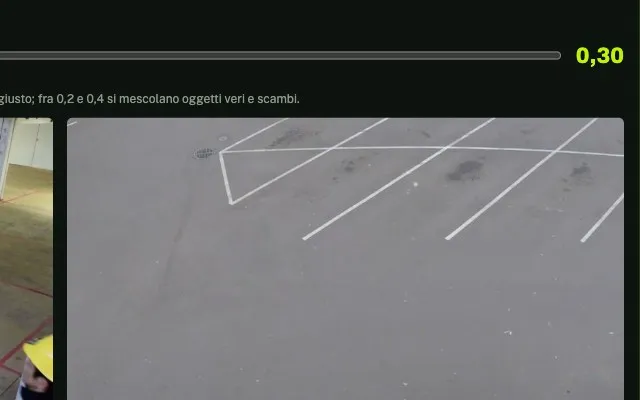
Choose the threshold
Move the threshold until only the right boxes are left: you see at once what each value keeps.
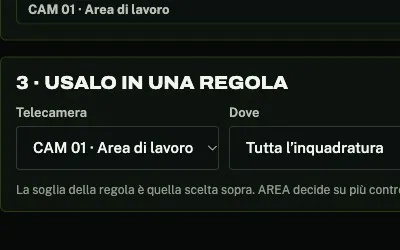
Use it in a rule
Choose the camera and zone, whether to alert when the object is there or when it is missing, and after how many seconds.
What we measured
Neurally internal test, 15 November 2026: objects described in words on three real videos, one check every 2 seconds, counted only when the box falls where the object is.
- Fire extinguisher (about 15 pixels wide): found in 97% of checks at a 0.5 threshold.
- Blue bin: 100% at 0.5. Hazard tape on the floor: 89% at 0.5.
- Corridor door: 100% at 0.3, 64% at 0.5.
- Traffic cones at roadworks, at night: 61% at 0.3.
- Objects that were not in the shot, such as a forklift, a dog, fire or smoke, never went above 0.3.
Find out how to recognise the objects you want!
Contact usHow do you write a good description?
A few concrete words, such as “red wall-mounted fire extinguisher”. The result also depends on the view:
- how large the object is in the image
- how much light there is
- whether it is partly hidden
How do you choose the threshold?
Above 0.5 it is usually the right object; between 0.2 and 0.4 real objects and mistakes mix. AREA decides on several checks in a row, not just one, and when the zone is too dark it does not report an object as missing.
What happens next?
AREA checks the object every few seconds and, when the rule is triggered, creates an event with a photo and a clip like every other rule.
How video analysis worksFrequently asked questions
AREA’s answers to your questions.
What is AREA Custom?
It is the AREA feature that recognises objects beyond the 80 standard types from a description in words, with no training. The object is then used in rules, to know when it is there or when it is missing.
Do you need a data scientist to use AREA Custom?
No. You write what to look for, see where AREA finds it in your cameras, choose the threshold and create the rule. There are no images to label.
Do you need images to train AREA?
No. AREA Custom starts from a description. For objects that stay uncertain, a model trained on images from your cameras can be assessed.
Does it work with any object?
It works well with distinctive objects, such as a fire extinguisher or a bin. With generic, small or partly hidden objects the score stays low: in those cases it is worth trying it on your cameras first.
Which videos is it used on?
On live camera streams and recorded videos, like the rest of AREA: when the rule is triggered, the event reaches the panel with a photo and a clip.
What do you want AREA to see for you?
Find out how to set up your own custom object recognition. Contact us and we’ll get back to you as soon as possible!
Or email us at info@neurally.it or call us on +39 0532 1717097.